How to Run Projects in Google Sheets (Without Add-ons or Scripts)
Project management template Google Sheets: build a task register, status dropdowns, and a project view. See the fields and checks a small team needs.
By Professional Business Bundle by Cosmo Suite · Editorial policy
Published · 8 min read
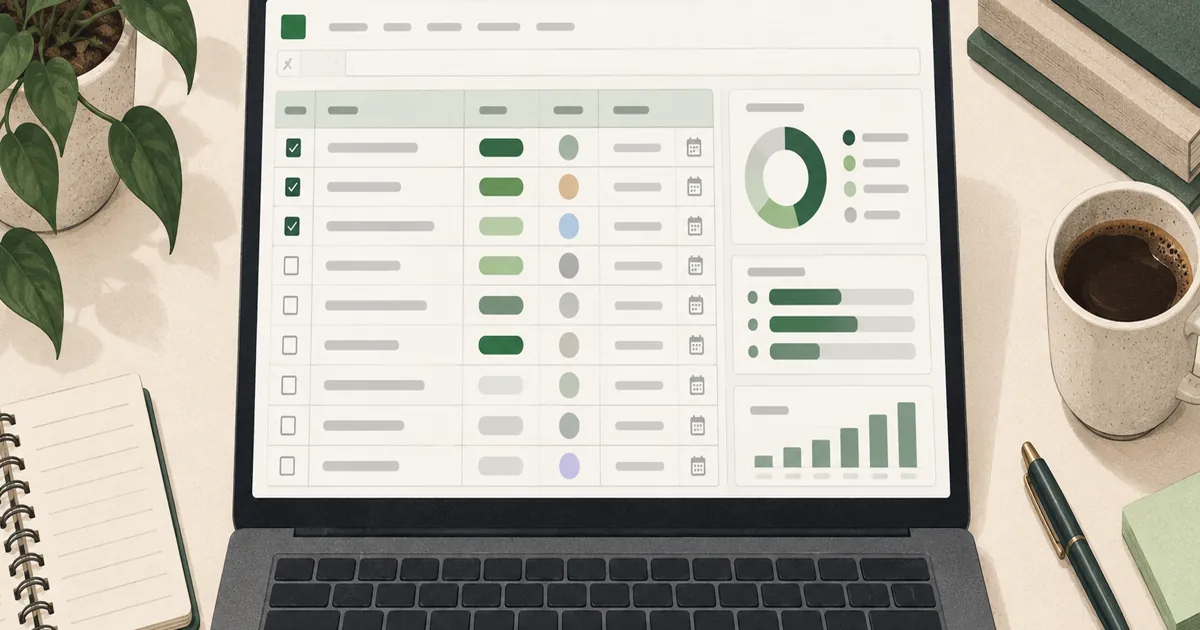
A project management template in Google Sheets can work well for a small team when one person owns the task list and everyone can work from the same file. Use a clean register of tasks, owners, status, dates, and dependencies. Add a summary view only after the rows are consistent.
The useful test is simple: can you tell what is late, who owns the next action, and what depends on it without checking three tabs? This guide walks through a no-script setup, the Google Sheets features that help, and the point where a project app is the better tool. If you want to compare a ready-made workbook, the Professional Business Bundle project files include a Project Manager workbook in both Excel and Google Sheets formats.
Project management in Google Sheets at a glance
| Need | Simple Sheets setup | Check before you rely on it |
|---|---|---|
| One list of work | Task register with one row per action | Does each row have one clear owner? |
| Consistent status | Dropdown for status values | Can people enter a status that is not on the list? |
| Find the next work | Filter by owner, due date, or status | Does the filter keep the task context visible? |
| See project progress | Summary cells or a separate overview | Do the totals match the task register? |
| Keep changes understandable | Short change note plus version history | Can you explain why a date moved? |
Keep the first version plain. A single register with a few useful filters is easier to maintain than a workbook full of charts no one checks. When the structure works for real tasks, then add a project overview or calendar.
What columns belong in a project tracker?
A project tracker is a working list of tasks, owners, statuses, dates, and blockers. For a small team, begin with columns that answer four questions: what is the task, who owns it, when is it due, and what is blocking it?
| Column | Example | Why it helps |
|---|---|---|
| Project | Website refresh | Separates work when one file holds several projects |
| Task | Approve mobile layout | Names a finishable action |
| Owner | Jordan | Gives the next step to one person |
| Status | Waiting | Shows the current state in a consistent way |
| Start date | Oct 20 | Helps with sequencing where needed |
| Due date | Oct 23 | Makes deadlines sortable and filterable |
| Depends on | Client copy | Shows why a task may not be ready |
| Change note | Review moved to Oct 22 | Records context when a date changes |
Use one row for each task, not one row for each project with a long list of work inside a cell. A row-based register sorts and filters cleanly. Keep the project name spelled the same way on every row so project summaries do not split into near-duplicates.
For a small website refresh, the register might contain “Draft service page,” “Review mobile layout,” and “Publish approved copy.” Each has one owner and a due date. If publication depends on client approval, put “Client approval” in the dependency field. That makes the blocked work visible during a weekly review.
The project plan template guide covers the outcome, scope, phases, and dates that sit around this task list. The register is the working schedule; it does not need to repeat the whole project brief.
How do you set up the task register without scripts?
Create a header row, freeze it, and keep each task on its own row. Use dates as dates rather than typing phrases such as “next Friday” into the due-date column. This lets Sheets sort the schedule in order.
- Add the columns for project, task, owner, status, start date, due date, dependency, and change note.
- Enter a few real tasks and check that each one has an owner and a finish point.
- Apply a dropdown to the status range. Google Sheets supports a typed list or a range of cells as the source for dropdown values (Google’s dropdown instructions).
- Add a filter to the header row. Filter by status, owner, or due date when you review the work.
- Protect the header and formula cells if accidental edits would break the view. Leave task input cells easy to update.
Start with four or five status values that describe your workflow, such as Not started, In progress, Waiting, and Done. A long list creates arguments about labels. If “Waiting” needs context, use the dependency or note column instead of inventing another status for every situation.
Which Google Sheets features help most?
Dropdowns, filters, conditional formatting, and version history solve different problems. Use each only where it reduces a repeat task or makes an error easier to spot.
Dropdowns keep labels consistent. Google Sheets lets you enter dropdown options or use a range as the source. You can also choose whether an invalid value is rejected or only triggers a warning. Set this up on the status and priority columns, not on free-form task descriptions.
Filters narrow the list. A filter can show open tasks for one owner or work due this week. Google’s help distinguishes regular filters from filter views; named filter views can save multiple ways to look at the same sheet (Google’s sorting and filter guide). A formula-based view can also pull matching rows from a range with the FILTER function. That takes more setup, so test the result against the source rows before relying on it.
Conditional formatting calls attention to dates. A rule can highlight a due date that has passed or a task marked Waiting. Google Sheets lets you format cells, rows, or columns when they meet a condition (Google’s conditional formatting guide). Use a simple color rule as a visual cue, then keep the status text in the cell. Color should not be the only way to understand the task.
Version history helps recover context. Google Sheets keeps version history, where editors can see earlier changes and who made them. Google also notes that some edits, including formatting changes and formula changes, may not appear in a cell's edit history (Google’s file-change guide). For routine status reporting, a short change note is easier to scan than reviewing every revision.
These features do not build a dependable project workflow by themselves. The weekly review is where someone confirms what is late, what is blocked, and whether the next dates still make sense.
How can you make a project view from the register?
A useful overview answers a short list of questions without asking someone to retype the same tasks in another tab. Start with one project selector or filter, then show a small set of measures: open tasks, overdue tasks, upcoming due dates, and current status.
Consider a three-person design studio with six client projects. One project is two weeks late because a client has not approved the page copy. In the task register, keep the approval task marked Waiting and name the dependency. The overview can then show the blocked task and its due date beside the project's other open work. It should not make the schedule look on track just because most other rows are complete.
If you build a summary using formulas, test it against a hand-counted sample. Select one project, count its open rows, and compare that count with the displayed number. Then select another project. A summary that works for only the first project is worse than no summary because it gives a false sense of control.
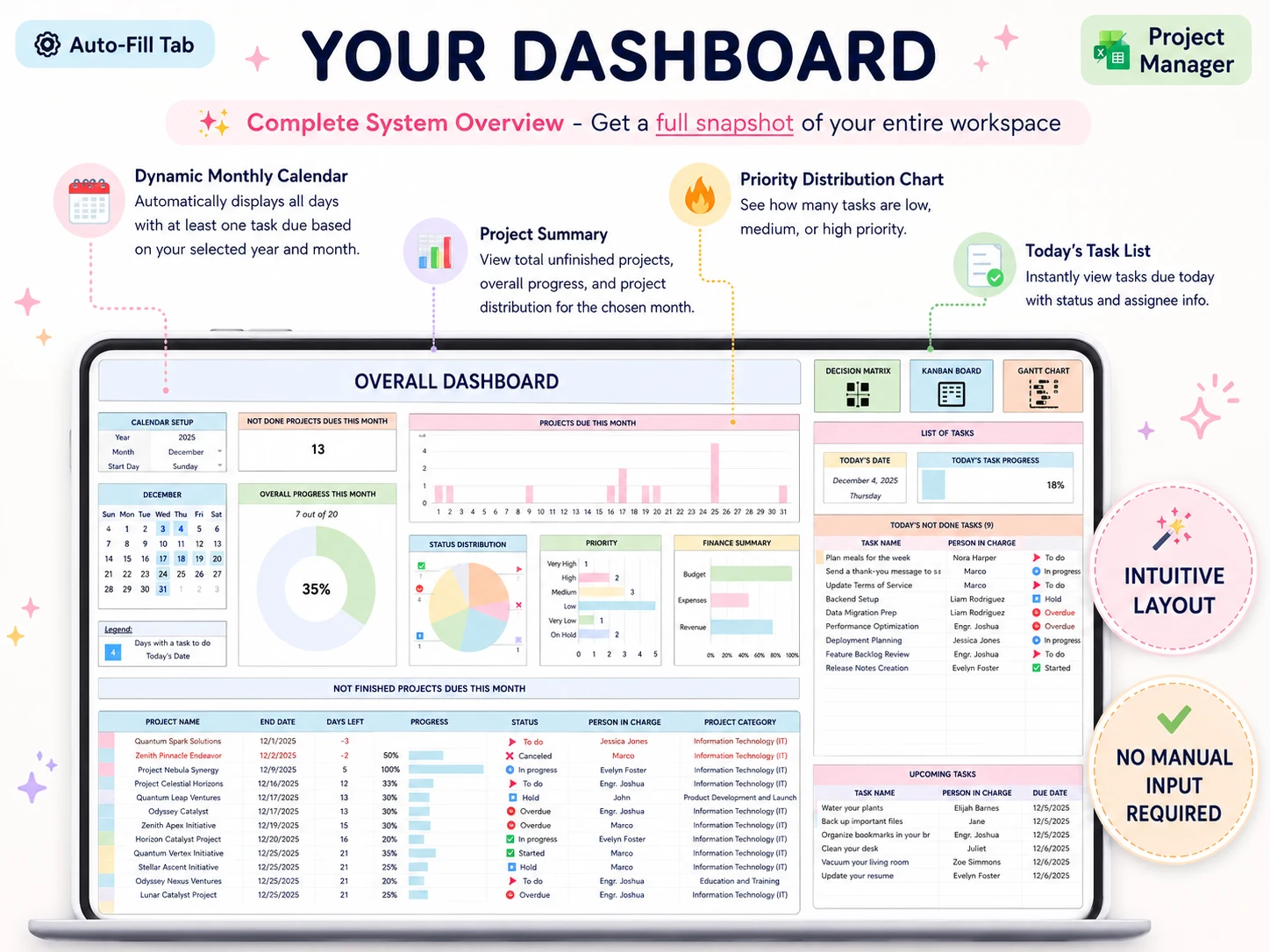
A project overview like the one in the project manager template checklist is one way to assess whether a workbook connects the task list to the status view. Look for a selector or filter that changes the project context, rather than a separate static summary that someone must maintain by hand.
What usually breaks a spreadsheet project plan?
The tracker tends to fail when people stop updating it or when formulas hide inconsistent data. These checks catch common trouble early:
- Rows without owners: assign one person who will move the task forward.
- Dates stored as text: use date values so sorting and date rules work.
- Status labels that drift: apply a dropdown and keep the allowed choices short.
- A second task list: decide which tab is the source for due dates and update the summary from it.
- A dependency with no next action: name the person or decision that can unblock it.
- A formula with no sample check: compare its result with a small hand-counted set.
The most useful routine is a brief weekly review. Filter to overdue tasks, confirm the next week's work with each owner, and record the reason when a milestone moves. If clients need a progress note, write it from the current task data rather than from memory.
For more than one client, the freelancer project management guide shows how a client list, task register, and weekly plan can work together. Keep the due date in one place; the weekly plan should select work, not become another task database.
When should you choose project software?
Use project software when the job depends on notifications, client access, detailed permissions, or automation. Google Sheets works for a small team when someone owns the updates and the team can agree on one shared file.
A spreadsheet can hold a task register, dates, dropdowns, filters, and a summary. It will not provide a project app's full workflow features. If two or more people need a reliable notification when a task changes, or clients need to sign in and see their own work, check software that supports those needs.
The choice also depends on who maintains the file. If no one has time to review overdue work and correct stale dates, moving the same process into a more polished workbook will not fix it. Set an owner and a review day before adding more tabs.
Why trust this article
Professional Business Bundle sells downloadable business planning files, so it has a commercial interest in spreadsheet templates. The steps here use Google’s help pages for dropdowns, filters, conditional formatting, and version history. The examples describe a small-team workflow, not a tested customer result. Read more about the publisher on the about page and its editorial policy. Google Sheets menus can change; check the linked instructions if an option has moved.
Where the Professional Business Bundle fits
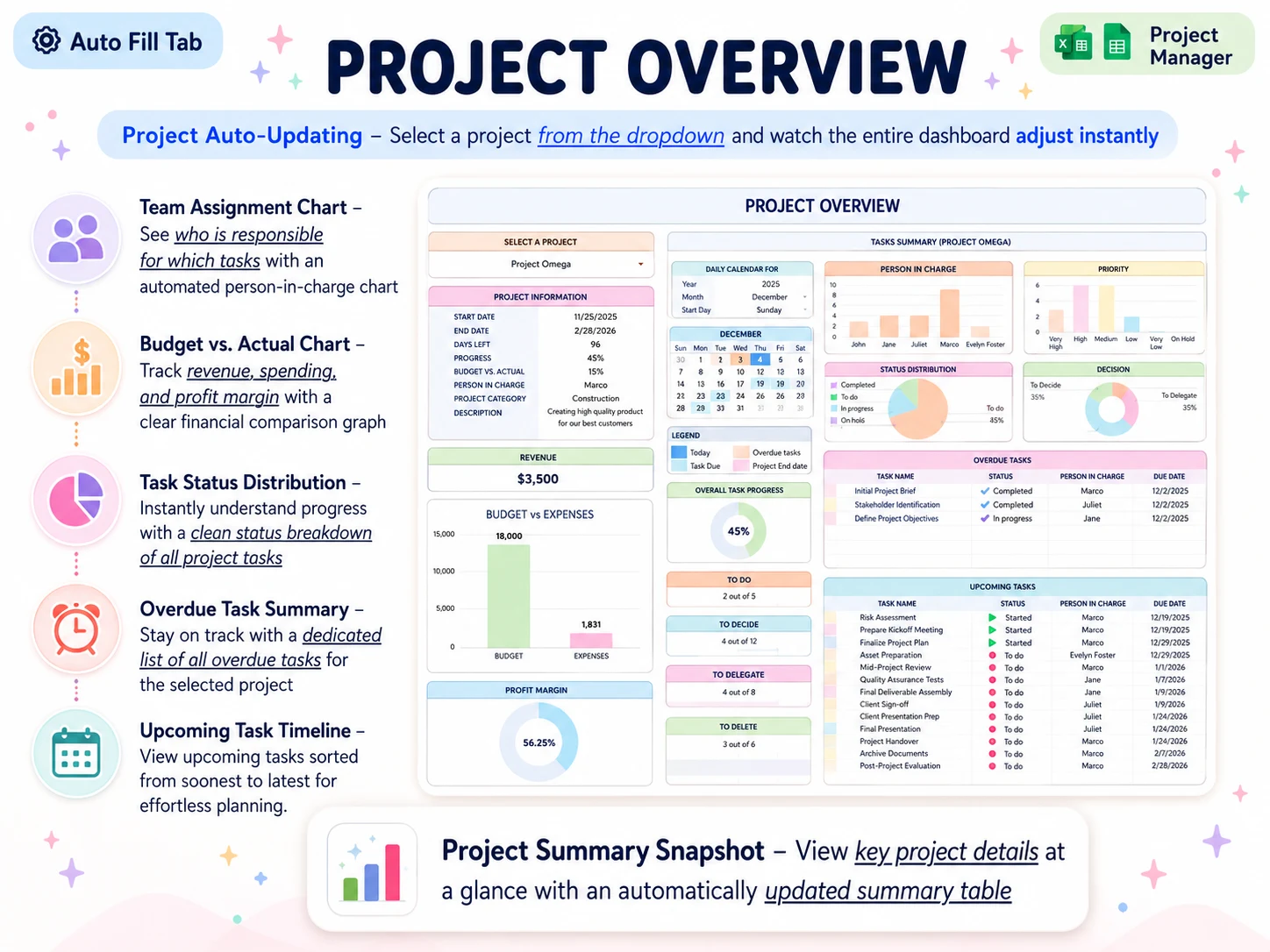
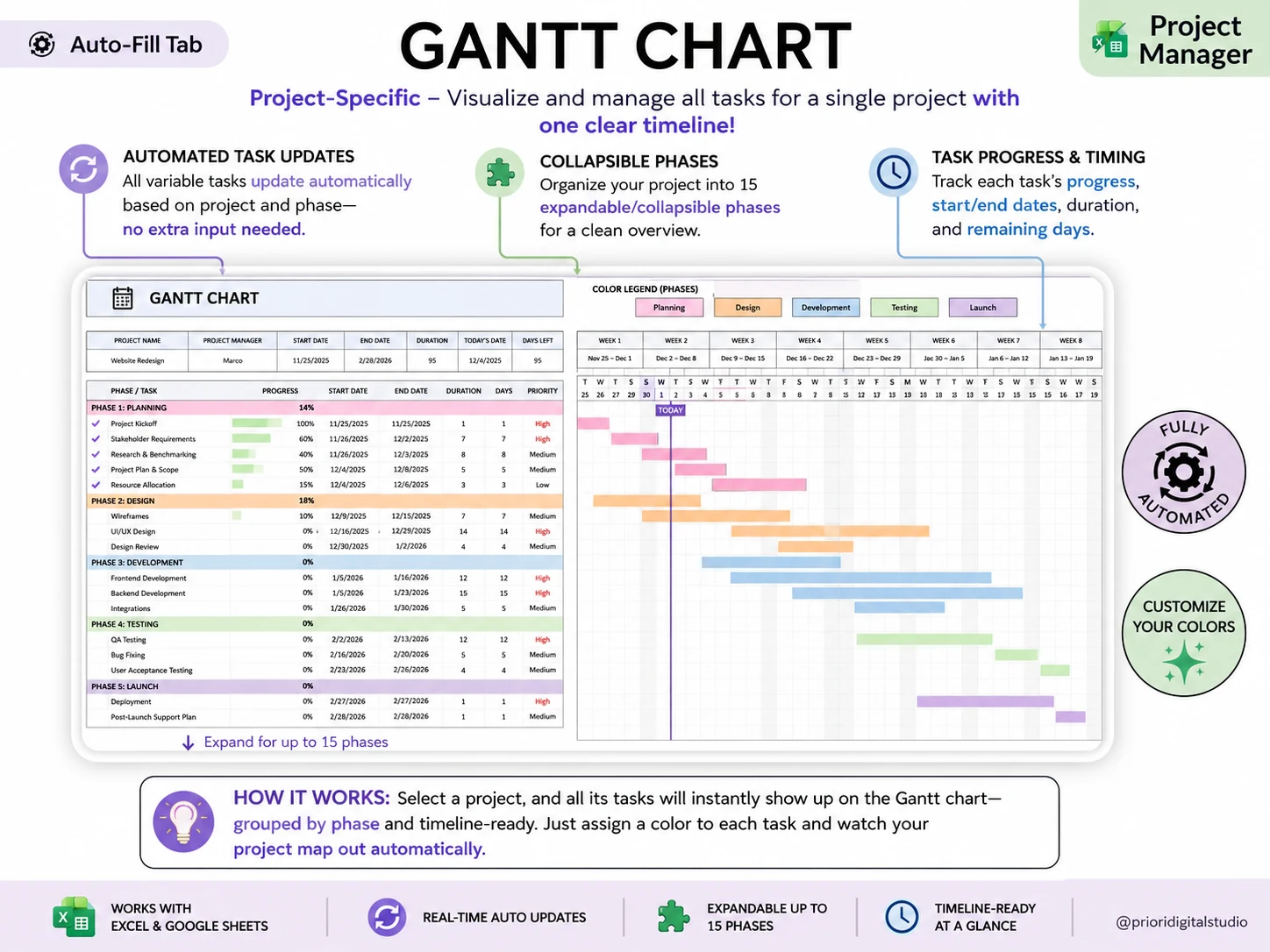
The Professional Business Bundle includes a Project Manager workbook with 15 tabs. Its project overview includes a project selector, budget versus actual, task status distribution, overdue summary, and upcoming timeline. The bundle also includes a Professional Planner for OneNote with 215+ pages, Weekly Planner Pro with 8 tabs, and a budget spreadsheet with 28 tabs.
The spreadsheets are available in Excel 365 and Google Sheets formats. The listed price is $9 once. If you want a ready-made file set, see the Professional Business Bundle. Review the project overview screenshot and project manager dashboard screenshot against the columns and views you need.
The workbook is a set of files, not a project app. It does not provide live collaboration, notifications, client logins, or automatic workflow tools. Choose an app if those features are part of the job. Choose a spreadsheet when you want to own the file and can keep its task data current.
Frequently asked questions
Can I manage a project in Google Sheets?
Yes. Google Sheets can hold a task register, status dropdowns, dates, filters, and summary formulas. It suits a small project when someone owns updates and the team can work from the file. Use project software when you need client logins, automatic reminders, or more controlled workflows.
What should a project management template in Google Sheets include?
Start with one task row per action and columns for project, task, owner, status, start date, due date, and dependency. Add a summary view only after the register is usable. Include a change note if your team needs to explain why dates moved.
How do I create a status dropdown in Google Sheets?
Select the status cells, open Insert, then Dropdown, and enter the allowed values. Google Sheets also lets you create a dropdown from a range. Choose whether invalid entries should be rejected or shown as a warning.
Can several people update a Google Sheets project tracker?
Yes, people with access can edit the same file. Filter views let people work with named filters, but a spreadsheet still lacks the project controls, reminders, and client portal you may expect from dedicated software. Check access and update ownership before using it for client work.
How do I keep a Google Sheets project plan current?
Set a weekly review. Check overdue tasks, confirm owners and dependencies, then record the reason when a date changes. Google Sheets version history can show earlier edits, but a short change note is easier to use in a status update.
When should I use project software instead of Google Sheets?
Use project software when your team depends on automatic notifications, client access, detailed permissions, or repeatable workflows. A spreadsheet is a practical fit when one person can maintain the task register and the team needs a clear view of dates and status.
Sources
Keep reading
Project Templates
Project Manager Template: The One Feature That Decides Whether You Keep Using It
Project manager template guide: the 5 tests a file must pass, a 6-project worked example, and when per-seat software beats a spreadsheet. Pick yours fast.
· 7 min read
Project Templates
How to Write a Project Plan (And Keep It True After Week One)
Project plan template: set the brief, phases, owners, and dates, then update the task view as work changes. This six-project example shows what to check.
· 9 min read
