Project Manager Template: The One Feature That Decides Whether You Keep Using It
Project manager template guide: the 5 tests a file must pass, a 6-project worked example, and when per-seat software beats a spreadsheet. Pick yours fast.
By Professional Business Bundle by Cosmo Suite · Editorial policy
Published · 7 min read
The best project manager template is the one you can open on a Friday afternoon and see what is overdue across every client, without opening a second file. Most templates don't do that. They are one sheet for one job, and by week three nobody updates them.
So the feature that decides whether you keep using a template is small: pick a project from a dropdown, and the whole overview redraws for it. Budget, status, overdue tasks and timeline, all from one task log. A project manager workbook built around that dropdown is what we build, and the rest of this guide shows how to judge any template, ours included, against five tests.
Key takeaways:
- The deciding feature: a project dropdown that redraws the overview from one task log.
- The five tests: pick a project, overdue list, budget beside tasks, a timeline that moves, and the right format.
- When an app wins: clients who log in, live co-editing, automations and notifications.
Project Manager Templates at a Glance
Each kind of template has a place. This is where each one tends to break for a business with several projects.
| Template type | Good for | Where it breaks |
|---|---|---|
| Single-purpose download (task list, Gantt, status report) | One project, one owner | Cross-project view means opening each file |
| Template library (dozens of files) | Finding a starting point | You assemble the system yourself |
| Excel or Sheets workbook with a project dropdown | 3-10 projects, 1-5 people | No live co-editing, no notifications |
| Project management app | Teams, client access, automations | Cost per seat, every month |
Pick the second-to-last row if you run several client projects and don't need clients or staff to log in. Pick the last row if you do.
Why Most Project Manager Templates Get Dropped by Week Three
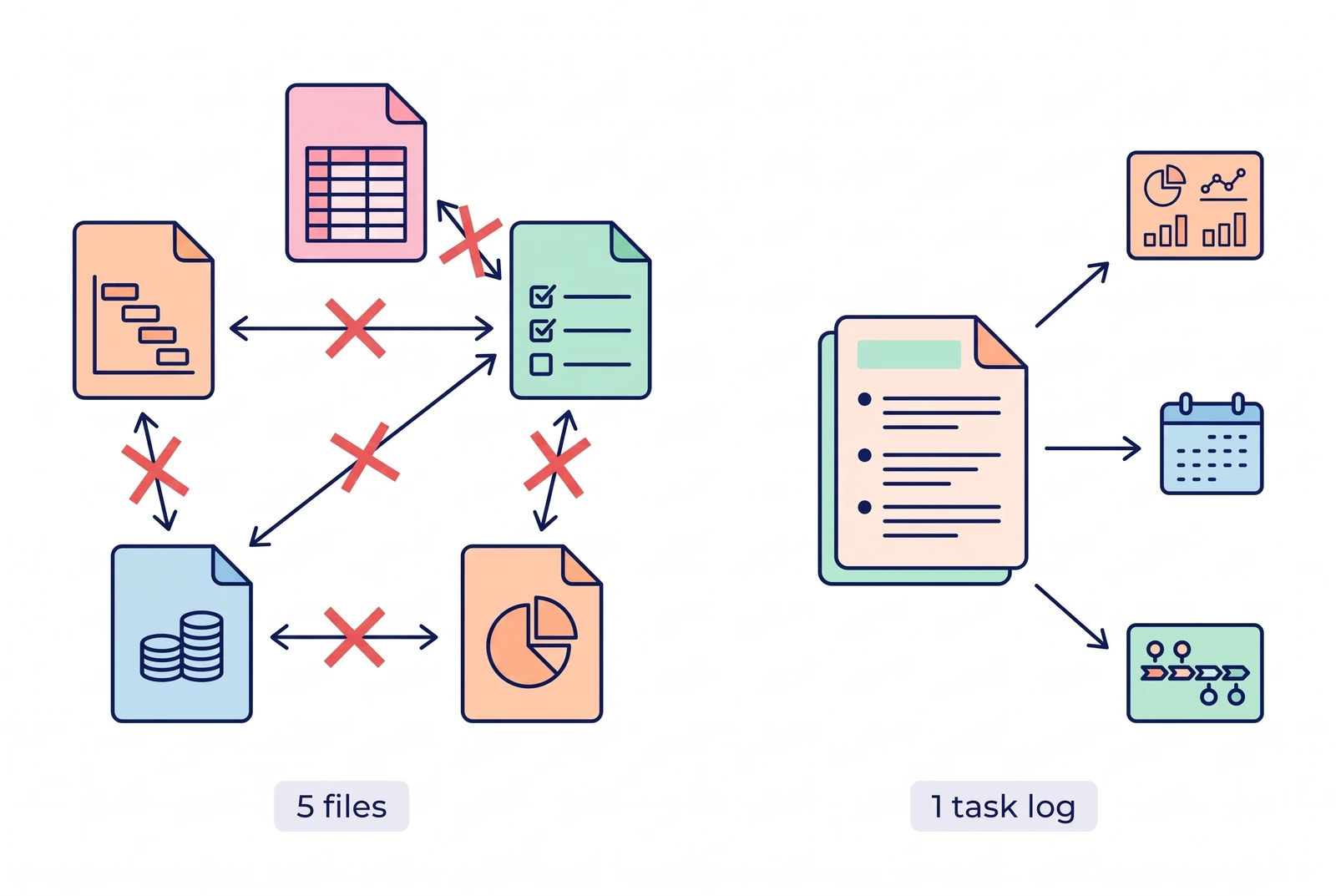
Most templates fail because they ask you to build the system yourself. A library hands you parts, and you do the wiring.
Look at what the top results offer. ProjectManager's page advertises "over 75 templates for Excel, Word or ProjectManager", sorted into kickoff, planning, reporting and tracking. Microsoft's Excel page highlights five project templates: a Gantt planner, a project tracker, two idea planners and a to-do list. UC Berkeley's IT department lists 13 separate templates, from a project charter to a budget template, each its own Google Docs or Sheets file. All three are useful. None of them tells you how to connect the Gantt file to the tracker file, so each stays an island.
That is the real reason templates die. The tracker says a task is done, the Gantt still shows it open, and the status note you send a client disagrees with both. After that you stop trusting either one.
What Should a Project Manager Template Do?
A project manager template is a ready-made file that holds a project's tasks, dates, owners and budget in one place. It should also pass five tests. Each is a question you can answer in a minute by opening the file.
Can you pick a project and see only that project?
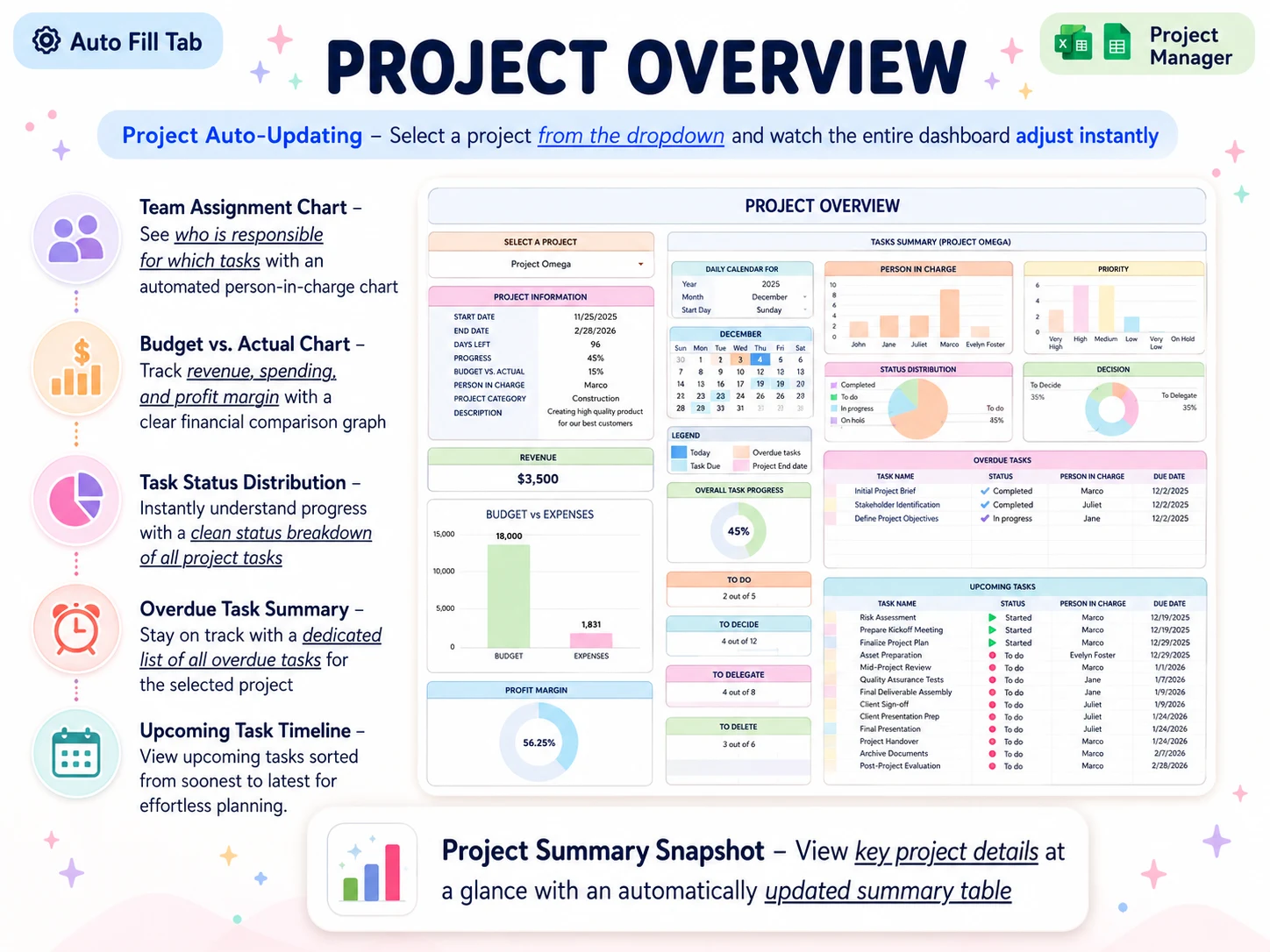
This is the dropdown test, and it is the one that matters most. In a good file, choosing "Project Omega" changes the summary, budget chart, task status chart, overdue list and upcoming timeline to that project alone. In a weak file, every project sits on one long sheet and you filter by hand.
Does it show what is overdue without you checking?
Overdue should be a list the file builds for you, driven by due dates and status. If you have to scan a column for red dates, you'll skip it the week you're busy, which is exactly the week it matters.
Does the budget sit next to the tasks?
A project is late and over budget at the same time more often than people admit. When budget versus actual lives in the same view as task status, you see both problems in one look. A template with no money column leaves you to keep a second sheet.
Do you need a timeline?
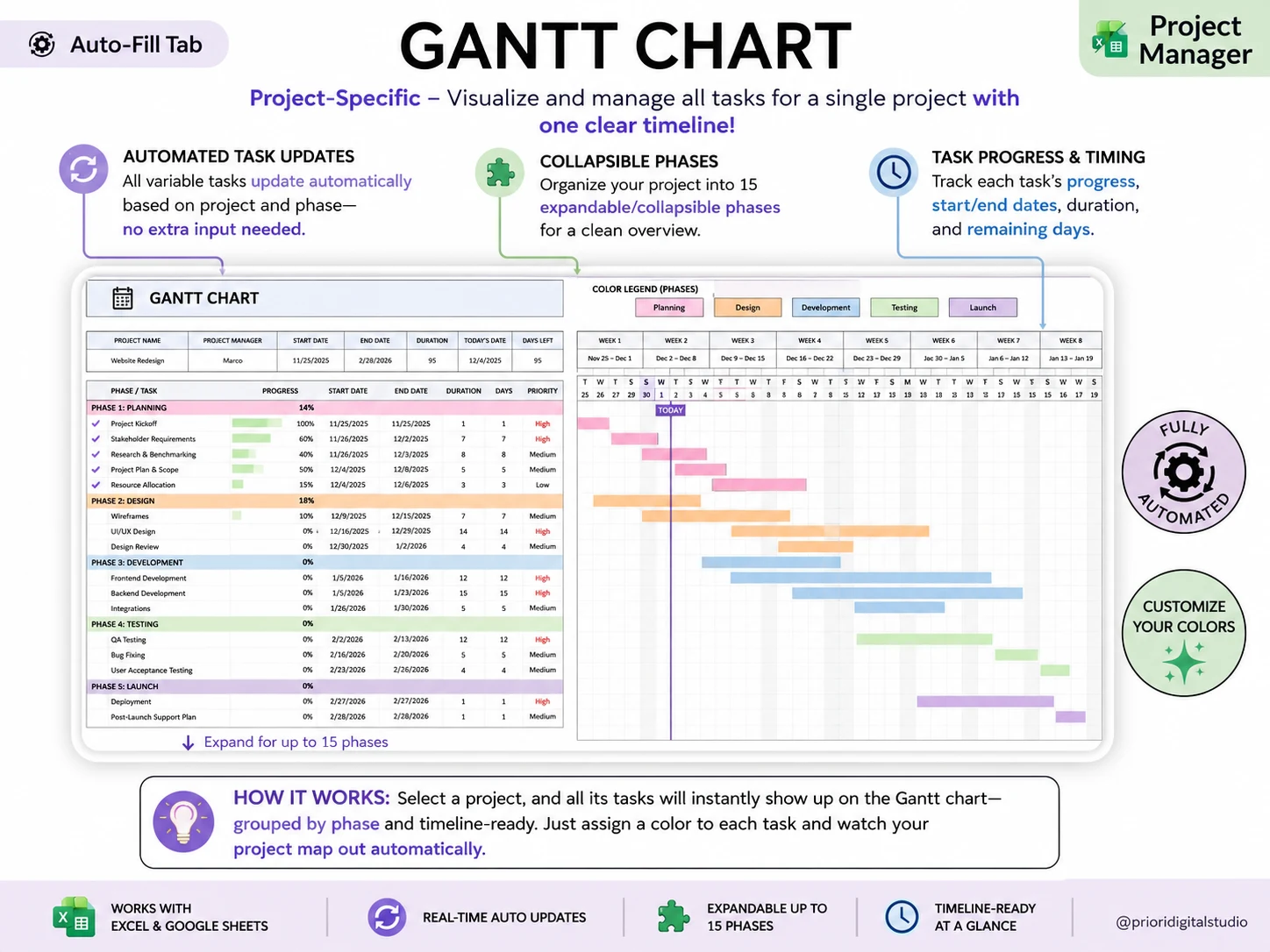
Only if dates move. A timeline view earns its place when a slipped task pushes others, so look for start date, end date, duration and days remaining that update from the task log. A picture of a timeline that you redraw by hand is a poster, not a plan.
Does it work where you work?
Check the format before the features. Excel 365 and Google Sheets both handle dropdowns, dates and formulas. Be careful with conversions: Google's help page notes that when you bring a protected Excel file into Sheets, locked and hidden cells become viewable and editable, and linked spreadsheets are not supported. Start from a native copy in the tool you use.
A Worked Example: A Design Studio With Six Client Projects
Take a three-person design studio with six client projects, one of them two weeks late. This is an illustration, not a case study, and the numbers are round on purpose.
Say each project has eight open tasks, so 48 open tasks in all. With one file per project, finding what is overdue means opening six files and scanning six columns. With one workbook, you open the overview, pick the late project from the dropdown, and read its overdue list: the tasks, the person in charge and the due dates.
Now the Friday note to that client. You need five things: days left, progress, overdue tasks, what is due next week, and budget against spend. All five sit on the same overview, so the note takes minutes, not an afternoon of copying between files.
The timeline matters here too. A two-week slip on one phase means the tasks after it move. A task-driven view with collapsible phases shows the knock-on dates, where a hand-drawn bar chart shows nothing until you redraw it.
When Is a Template Not Enough?
A template is not enough when other people must work inside it at the same time. If clients need a login, if five people edit at once, or if you want automations and notifications, a project management app is the right pick. monday.com, Asana, ClickUp and Trello are good software, and for those jobs they win.
The decision is mostly cost. Take monday.com as an example. Its support page says paid plans start at three seats (monday.com Support, read 4 October 2026), and its Standard plan was listed at $12 per seat per month on annual billing when we checked. A solo user or a two-person business still pays for three.
For example, here is our own arithmetic on that price (3 seats × $12 × 12 months = $432 a year):
| Period | 3 seats at $12 a month, annual billing | One-time file at $9 |
|---|---|---|
| 1 year | $432 | $9 |
| 3 years | $1,296 | $9 |
| 5 years | $2,160 | $9 |
Prices change, so check the vendor's pricing page before you decide. What matters is the shape of the numbers: a subscription repeats every year, and a file you own does not. If you need what the subscription buys, it can be well worth it. If you only track a handful of projects, you may be paying every month for a feature set you don't use.
What Actually Decides Whether You Keep Using It
Five habits matter more than the template you choose.
Type into one place only. Every task goes in one log. Views, charts and lists should read from it and never ask you to retype.
Review on a fixed day. A Friday ten-minute pass over the overdue list keeps any file honest. The best template with no review day is out of date by month two.
Start with the projects you have. Put in the real six, not a perfect structure. Add setup later, once you see what you actually look up.
Keep one owner per task. A task with no person in charge is the first to go overdue. Every row needs a name and a due date, and a good file makes the blank ones obvious.
Count the files, not the features. If your system needs more than one file to answer "what is late?", the number of files is the bug. Three tabs in one workbook beat three downloads, because tabs share one task log and downloads share nothing.
A template that fights these habits is the wrong one for you.
Why Trust This Article
The Cosmo Suite team makes the Professional Business Bundle, so we have an interest in this topic, and you should weigh our advice with that in mind. Competitor details come from the vendors' own pages, with the date we read them, and the sources are listed in this post's frontmatter. The screenshots are from our own Project Manager file. You can read more about how we work on our about page and editorial policy. Check any price on the vendor's page before you act, since plans change.
Where the Professional Business Bundle Fits
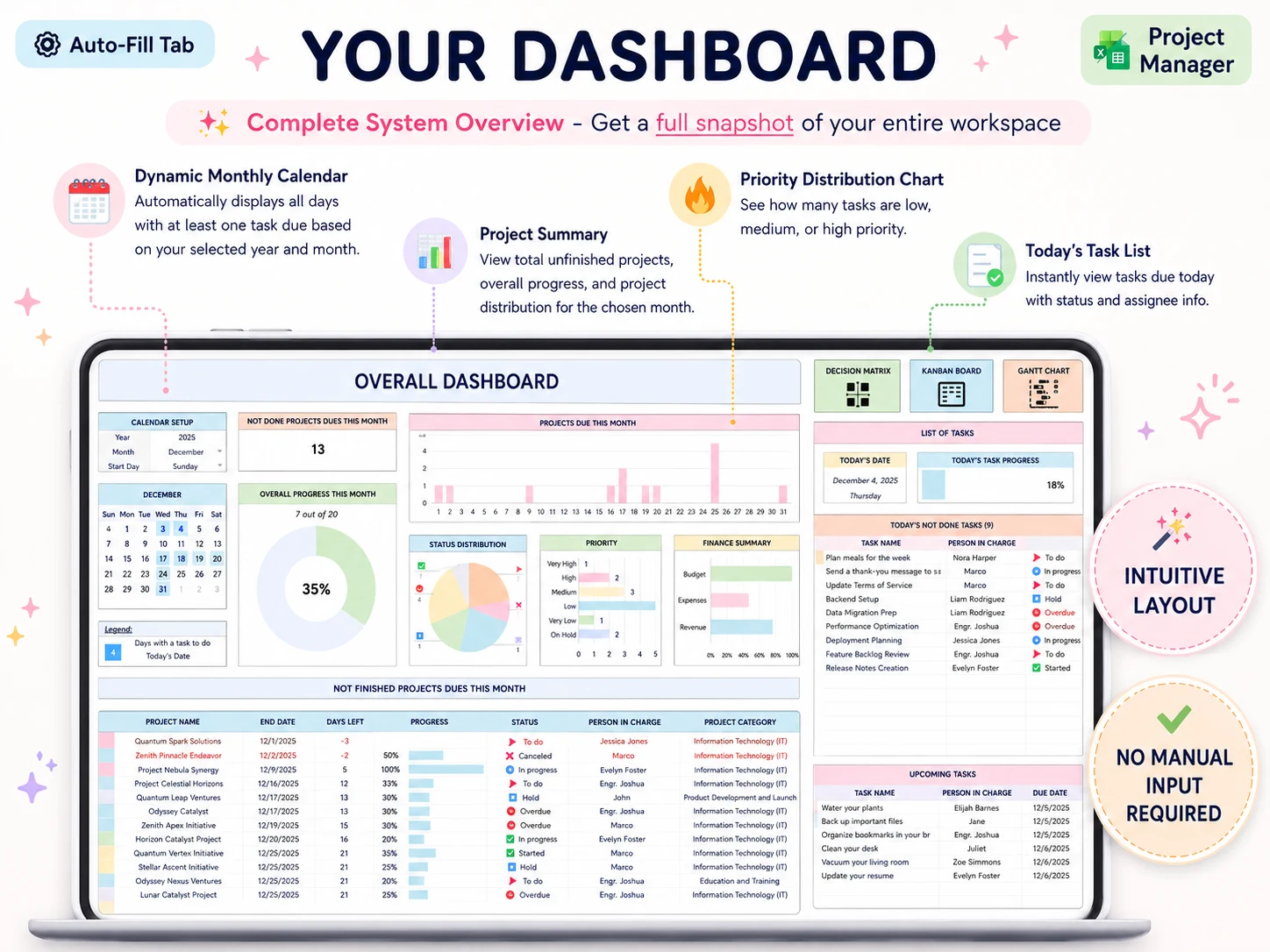
The Professional Business Bundle (professionalbundle.site) is built around the dropdown test above. Its Project Manager file has 15 tabs, and the project overview tab redraws its summary, team assignment chart, budget versus actual, task status, overdue summary and upcoming timeline for whichever project you pick. It also includes project budget tracking, recurring and variable tasks, a task schedule and filter, a decision matrix, a Kanban board, and a per-project Gantt chart with collapsible phases.
The bundle has four files in all: the Project Manager, a Professional Planner for OneNote with 215+ pages, Weekly Planner Pro with 8 tabs, and a budget spreadsheet. The spreadsheets come in Excel 365 and Google Sheets versions, plus a step-by-step YouTube tutorial, for $9 once. It is not project management software: there is no live co-editing, no notifications and no client portal.
Frequently asked questions
What is the best project manager template for a small business?
The best one is the one that shows every project's overdue tasks without opening a second file. For a solo consultant or a team of two to five, that usually means one workbook with a project dropdown, a task log and a status view, not a folder of single-purpose downloads.
Can you use Excel as a project manager?
Yes, for a handful of projects and a small team. Excel handles task lists, dates, budgets and conditional formatting well. It does not send notifications or let several people edit live, so it stops fitting once a team needs those.
Are free project manager templates good enough?
Often, yes, for one project. The gap shows up when you run several: free files tend to be one sheet per purpose, so a cross-project overdue list means opening each file by hand. Free is the right call if you have one project and one owner.
Does a project manager template work in Google Sheets?
It can. Sheets handles dates, dropdowns and formulas. Opening an Excel file in Sheets is different from using a native copy, because Google's own help notes that locked and hidden cells become viewable and editable after conversion, so start from a Sheets version.
How many tabs should a project manager template have?
Fewer than you expect. You need a place for setup, one task log, one overview per project, a calendar and a timeline. Fifteen tabs is fine when most of them fill themselves in, because you only type into the task log.
When should I move from a template to project management software?
When clients need to log in, when several people must edit at once, or when you need automations and notifications. Those are real strengths of apps like monday.com or Asana, and a spreadsheet does not match them.
Sources
Keep reading
Project Templates
How to Run Projects in Google Sheets (Without Add-ons or Scripts)
Project management template Google Sheets: build a task register, status dropdowns, and a project view. See the fields and checks a small team needs.
· 8 min read
Project Templates
How to Write a Project Plan (And Keep It True After Week One)
Project plan template: set the brief, phases, owners, and dates, then update the task view as work changes. This six-project example shows what to check.
· 9 min read
